
NIU’s Center for Innovative Teaching and Learning (CITL) hosted the first Digital Accessibility Institute in May 2026, consisting of three days of workshops on transforming classroom digital content toward pre-emptive accessibility. In this context, “accessibility” most notably refers to making sure documents can be read by a screen reader. The session on accessible syllabi struck a particular chord: the syllabus is the first document most students have access to in a class, so accessibility is even more important.
The session, led by Lindsay Vreeland, gave numerous useful tips for accessibility in Microsoft Word, including an accessible syllabus template. However, as an economist, I am partial to using LaTeX for my academic papers, my lecture notes and presentations, and yes — my syllabi.
What is LaTeX, and why does it matter here?
LaTeX (pronounced “lah-tech” or “lay-tech”) is a document preparation system used widely in mathematics, economics, and the sciences. Instead of typing in a word processor and clicking buttons for bold or headings, you write in plain text with markup commands: \section{Course Policies} makes a section heading, \textbf{important} makes text bold. The commands describe what something is, not just how it looks. A compiler then takes the coded language and puts together a PDF. LaTeX gives precise typographic control, seamless math integration, and plain-text source files that play well with version control. Once I began learning how to use it for research documents, I wanted to stick with it for syllabi as well.
The problem, until recently, was that LaTeX’s PDF output was accessibility-challenged. The source code would be very structured, denoting headings, sub-headings, and other important information, but the compiled PDF would be a flat, untagged document. A student using assistive technology would open the visually well-organized syllabus and encounter a jumbled wall of words.
The old workflow: Compile, then auto-tag
As I started to pay more attention to accessibility over the past few years, my solution was to continue what I was doing with LaTeX (compile the PDF with pdfLaTeX) and then to run Adobe Acrobat’s auto-tag feature on the resulting document. This worked! …sort of. Acrobat is reasonably good at guessing structure from a visually formatted PDF: it can often identify paragraphs, pick up heading sizes, and create a navigable tree.
But “guessing from visuals” is fundamentally less reliable than knowing the actual structure. Auto-tagging sometimes got confused by my layout choices, collapsed list items into paragraphs, and missed table headers; if I ever included graphics, I would have to add the alternate text by hand. Furthermore, the syllabus is a living document that may need to change in the first few weeks as additional information becomes known. Every time I updated the syllabus, I had to re-tag it, going through the various remediation steps by hand.
The fix: Figure out how to use existing structure
One of the major accessibility pitfalls covered in the Institute was untagged PDFs: documents that a screen reader sees as an undifferentiated block of text, with no headings to navigate, no list structure, no sense of the document’s shape. The fix, for most people, is to author in Word with proper heading styles and export with the accessibility option checked.
However, the idea of needing to port everything back to Word really frustrated me! I chose LaTeX for good reasons, and I’ve made syllabi in LaTeX for over 10 years. Moreover, when the document is written in a markup language, the structure is already there. When I write \section{Course Policies}, I’m not just making text bigger and bold — I’m declaring a section, which is akin to a Level II heading. When I write \begin{itemize} or \begin{enumerate}, I’m declaring an unordered or ordered list. That information was in my work, but not showing in the PDF.
The LaTeX Tagging Project, a collaboration within the LaTeX3 development team, has spent several years solving exactly this problem: automatically carrying the semantic structure of a LaTeX document through into the PDF’s accessibility tag tree. With TeX Live 2025, that work became practically available to anyone. It is now possible to compile a LaTeX document to a PDF that meets PDF/UA-2 — the current international standard for accessible PDFs, and the technical foundation for WCAG 2.1 AA compliance — without Acrobat post-processing. This is a significant change for anyone who uses LaTeX in higher education.
Setting it up
The core change is a \DocumentMetadata block placed before your \documentclass declaration. You also need to compile with LuaLaTeX rather than pdfLaTeX (LuaLaTeX handles Unicode natively and is the supported engine for the tagging features, especially for making sure any math content is properly tagged as well).
\DocumentMetadata{
  lang        = en-US,
  pdfstandard = ua-2,
  tagging     = on,
  testphase   = footnotes,
}

\documentclass[12pt]{article}
Each key does something specific:
lang = en-UStells screen readers how to pronounce your text. Without it, a screen reader might mispronounce words by assuming the wrong language.pdfstandard = ua-2declares that you’re targeting PDF/UA-2 (ISO 14289-2), which is the standard required for WCAG 2.1 AA compliance in PDFs.tagging = onis the main switch — it tells LaTeX to write a structure tree into the PDF.testphase = footnotesenables experimental footnote tagging (more on this shortly).
After that, compile with LuaLaTeX and you get a tagged, structured PDF — with no Acrobat auto-tagging required.
Key tagging commands
Once tagging is enabled, a handful of commands do most of the accessibility work at the content level. These are placed throughout the document body, not the preamble.
Images
Images receive their accessibility information through options added directly to \includegraphics. A meaningful image gets an alt= description — a short, objective phrase that conveys what the image shows. A purely decorative image (a divider, a logo used as visual flair) gets artifact instead, which tells the screen reader to skip it entirely.
% Meaningful image: screen reader reads the alt text
\includegraphics[width=0.5\linewidth,
  alt={Bar chart showing grade distribution by assignment}]{chart.pdf}

% Decorative image: screen reader skips this
\includegraphics[artifact]{divider.pdf}
Tables
Tables need different treatment depending on their purpose. A data table — one where the header row labels the columns — gets \tagpdfsetup{table/header-rows={1}} immediately before the tabular environment, which tags those cells as TH so screen readers announce the relationship between headers and data. A layout table used purely for visual arrangement gets \tagpdfsetup{table/tagging=presentation}, which suppresses the table announcement altogether.
% Data table: header row tagged as TH, body rows as TD
\tagpdfsetup{table/header-rows={1}}
\begin{tabular}{ll}
Assignment & Weight \\\hline
Midterm    & 30\%   \\
Final      & 40\%   \\
\end{tabular}

% Layout table: not announced as a table
\tagpdfsetup{table/tagging=presentation}
\begin{tabular}{ll}
Office       & 71 North \\
Office hours & TTh 2--4\,pm \\
\end{tabular}
Links
Links use \href from the hyperref package. The first argument is the linked URL, while the second argument is what gets displayed and read aloud, so it should describe the destination rather than say “here” or “link.”
\href{https://drc.niu.edu}{NIU Disability Resource Center}
Headings
Headings require no extra commands beyond the standard sectioning hierarchy. When tagging=on is set, \section, \subsection, and \subsubsection automatically produce H1, H2, and H3 tags in the structure tree; this is exactly why using them properly (rather than faking headings with bold text) matters so much.
Changes in content
Getting the \DocumentMetadata block right was the biggest single change. But rereading the syllabus with an accessibility lens surfaced several other things worth fixing, some of which a screen reader user would encounter immediately.
-
Screen readers read all-caps text letter by letter. A screen reader encountering “NOT” reads it as “N-O-T,” because all caps is commonly used for abbreviations. If you’re using all caps for emphasis — “students may NOT submit late work” — a screen reader user hears spelled-out letters where you wanted stress. The fix is to write “not” and use
\textbf{not}for visual emphasis, reserving all caps for actual acronyms. -
Underlines look like hyperlinks. Using underlines for emphasis may confuse readers. The underline may be tagged as a stray image, or users might mistake underlined text for a hyperlink. If something is important, bold it. If it’s a link, link it — and make the link text descriptive.
\href{https://drc.niu.edu}{NIU Disability Resource Center}beats “click here” in every accessibility audit, and it’s clearer to all readers. -
Tables should earn their place. Some LaTeX syllabi use tabular environments for layout — placing contact information side by side, creating visual columns, spacing content. From an accessibility standpoint, a screen reader will announce “table, 2 columns, 3 rows” and then read every cell in order. If the table is actually a layout choice, that’s all just noise. We used
\tagpdfsetup{table/tagging=presentation}to mark layout tables as presentation elements (so screen readers skip the table structure announcement), and\tagpdfsetup{table/header-rows={1}}to properly identify header rows in actual data tables (the grading breakdown, the course calendar). -
Spacing: control it in the preamble, not with blank lines. One LaTeX habit that accessibility sessions flag is using extra blank lines between list items for visual breathing room, or using
\\to force line breaks for layout reasons. When a document is tagged, paragraphs are treated as logical containers, and forced line breaks insert visual instructions that interfere with that logic. We used\usepackage[compact]{titlesec}and\usepackage[skip=4pt plus 1pt]{parskip}to manage spacing document-wide. Theenumerateanditemizeenvironments look right without manual spacing hacks, and the tag structure stays clean. (To be honest, this is one place I miss a little bit of control: the tagging environment does not play nicely with\usepackage{enumitem}, which I used to reduce spacing in lists through the[noitemsep,nolistsep]option. Slightly decreased formatting options is a small trade for easier accessibility.) -
Bold formatting is not a heading. This one is easy to miss. If you’re using
\textbf{\large Some Header}to fake a heading visually, the PDF has no heading tag — it looks like a heading to the eye but is tagged as a paragraph (same as just changing the font in Microsoft Word). A screen reader user navigating by heading skips right over it. The fix is to use\section,\subsection, and\subsubsection, which produce real heading tags in the structure tree. If you don’t want section numbers (I don’t, for a syllabus), you can suppress the counter display while keeping the semantic tags:
\makeatletter
\renewcommand{\@seccntformat}[1]{}
\makeatother
The footnote problem
As a side-project this summer, I’m learning more about Claude Cowork and trying to gain some comfort with using it as an actual productivity assistant instead of just a chatbot. Updating my syllabus accessibility became one of my first test cases: here is the code for my current syllabus, here’s the NIU template, here are some links I think are useful… now help me update it!
The \DocumentMetadata fix was easy to understand and implement. However, I would compile with LuaLaTeX, then open the document in Acrobat and run the accessibility report… and get errors. The culprit? Footnotes.1
PDF/UA-2 has a specific requirement for footnotes: they should be tagged as <FENote> elements (the PDF/UA-2 footnote container), each containing a <Lbl> (the superscript marker) and a <Part> (the note text body). The testphase=footnotes option in \DocumentMetadata enables experimental footnote tagging — but it has a quirk. It tags footnote bodies as <text-unit>, a custom element that role-maps to <Part> in the PDF’s role map table. Acrobat’s accessibility checker doesn’t follow that role-map chain, so it flags every footnote as failing even though the underlying structure is technically there. MiKTeX adds its own layer of custom tags (/footnotelabel, /footnotemark, /footnote) that need to be renamed to their standard PDF/UA-2 equivalents as well.
The solution was a small Python post-processing script using the pikepdf library. Claude wrote a Python script called fix_note_tags.py, and after each LuaLaTeX compilation, we run:
python fix_note_tags.py filename.pdf
The script walks the PDF structure tree and renames the non-standard tags to their PDF/UA-2 equivalents: /footnote becomes /FENote, /footnotelabel becomes /Lbl, /footnotemark becomes /Reference, and <text-unit> children inside note containers become <Part>. The whole thing runs in under a second and overwrites the PDF in place. Based on a useful trick I learned a few years ago when incorporating Biber, I asked Claude to write a .bat file to wrap the LuaLaTeX compile and the Python step together into one command, that I can now click right in my TeXworks window.
This post-processing step hopefully won’t be necessary forever. The LaTeX Tagging Project is actively iterating on footnote support, and a future TeX Live update should make the Python workaround unnecessary. For now, it’s a clean solution that eliminates the need for auto-tagging.
The scripts
If you’ve gotten this far and want to replicate the footnote fix, here are both files. The Python script requires the pikepdf library (pip install pikepdf). The .bat file is written for Windows; on Mac or Linux, the same steps can be run in a shell script or typed directly in the terminal.
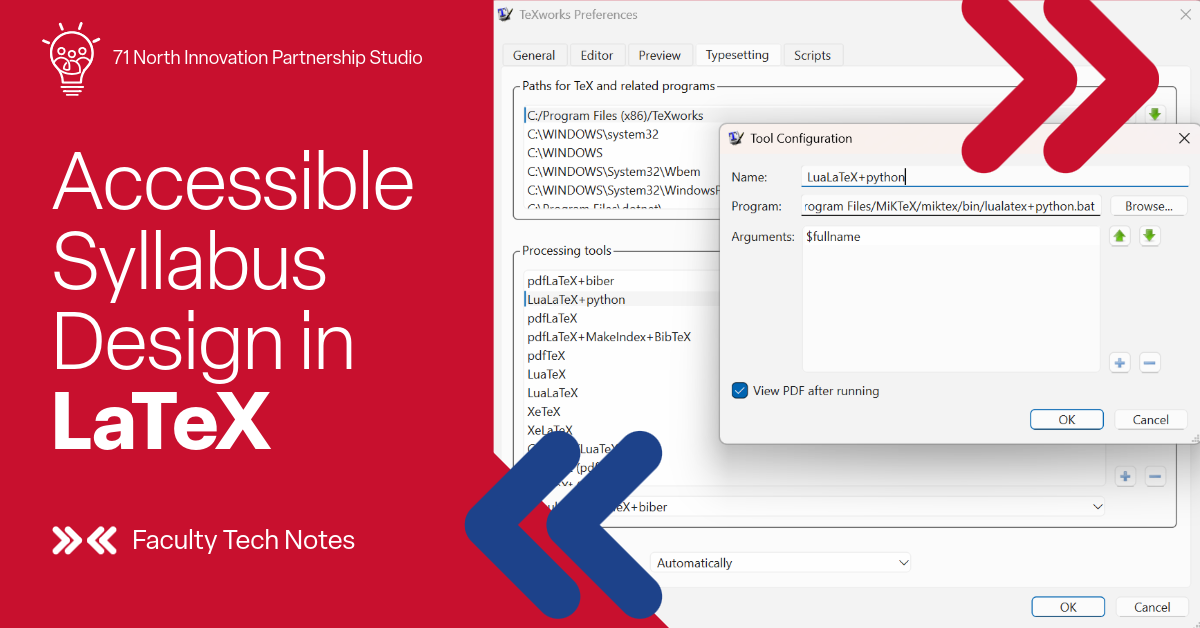
Both files should be placed in your MiKTeX bin directory (typically C:\Program Files\MiKTeX\miktex\bin\, it may be a hidden folder). To add it as a TeXworks tool: go to Edit → Preferences → Typesetting, click the + button under Processing Tools, set the Name to whatever you like (e.g., LuaLaTeX+python), set the Program to the full path of lualatex+python.bat in your MiKTeX bin, and set Arguments to $fullname. Check “View PDF after running” if desired.
fix_note_tags.py
#!/usr/bin/env python3
"""
fix_note_tags.py
================
Post-process a LuaLaTeX/MiKTeX PDF/UA-2 document to fix Acrobat
accessibility failures in the "Lbl and LBody" category.

MiKTeX's footnote tagging uses custom structure tags that role-map
to standard PDF/UA-2 tags, but Acrobat's Lbl/LBody checker does NOT
resolve custom tags through the role map.  It sees:

  /footnotelabel  (-> Lbl via role map) inside /footnote (unrecognised
                   as Note) -> "Lbl not inside LI or Note"
  /footnotemark   (-> Lbl via role map) inside /text (= P)
                -> "Lbl not inside LI or Note"

Fix: rename the three custom tags to their standard equivalents:
  /footnote      -> /FENote
  /footnotelabel -> /Lbl
  /footnotemark  -> /Reference   (inline superscript is a Reference,
                                   not a Lbl -- Lbl belongs in the Note)

A secondary fix handles TeX Live's testphase=footnotes, which tags
footnote bodies as /text-unit (role-maps to Part):
  /text-unit inside /FENote -> /Part

Requirements:  pip install pikepdf
Usage:         python fix_note_tags.py yourfile.pdf
               (overwrites in place; pass a second argument for a copy)
"""
import sys
import pikepdf

# Tags treated as Note containers for Step 2 child-processing
NOTE_ROLE_TAGS = frozenset({"/Note", "/FENote", "/Aside", "/float", "/footnote"})

# Standard PDF/UA-2 namespace URI
PDF2_NS_URI = "http://iso.org/pdf2/ssn"


def find_pdf2_namespace(struct_root):
    """Return the pikepdf Dictionary for the PDF/UA-2 namespace, or None."""
    namespaces = struct_root.get("/Namespaces")
    if not isinstance(namespaces, pikepdf.Array):
        return None
    for ns in namespaces:
        if isinstance(ns, pikepdf.Dictionary):
            if str(ns.get("/NS") or "") == PDF2_NS_URI:
                return ns
    return None


def set_standard_ns(elem, std_ns):
    """Point elem's /NS to the standard PDF/UA-2 namespace object."""
    if std_ns is not None:
        elem["/NS"] = std_ns
    else:
        try:
            del elem["/NS"]
        except KeyError:
            pass


# Tags that role-map to <Part> used as footnote body (TeX Live issue)
PART_BODY_TAGS = frozenset({"/Part", "/text-unit"})

# MiKTeX custom -> standard rename table
RENAME = {
    "/footnote":      "/FENote",
    "/footnotelabel": "/Lbl",
    "/footnotemark":  "/Reference",
}


def iter_struct_kids(kids):
    """Yield structure-element Dictionary children from a /K value."""
    if isinstance(kids, pikepdf.Array):
        for kid in kids:
            if isinstance(kid, pikepdf.Dictionary) and kid.get("/S") is not None:
                yield kid
    elif isinstance(kids, pikepdf.Dictionary) and kids.get("/S") is not None:
        yield kids


def fix_element(elem, counts, std_ns, depth=0):
    if depth > 100:
        return
    try:
        tag = str(elem.get("/S") or "")
    except Exception:
        return
    if not tag:
        return

    # Step 1: rename MiKTeX custom footnote tags to standard PDF/UA-2 tags
    if tag in RENAME:
        new_tag = RENAME[tag]
        elem["/S"] = pikepdf.Name(new_tag)
        set_standard_ns(elem, std_ns)
        counts[new_tag] = counts.get(new_tag, 0) + 1
        counts["(NS set on renamed)"] = counts.get("(NS set on renamed)", 0) + 1
        tag = new_tag

    # Step 1b: fix PDFs processed by earlier versions of this script
    # that renamed /footnote -> /Note (wrong for PDF/UA-2).
    if tag == "/Note" and elem.get("/Ref") is not None:
        elem["/S"] = pikepdf.Name("/FENote")
        tag = "/FENote"
        counts["/FENote (Note->FENote cleanup)"] = \
            counts.get("/FENote (Note->FENote cleanup)", 0) + 1

    NEEDS_STANDARD_NS = frozenset({"/FENote", "/Lbl", "/Reference"})
    if tag in NEEDS_STANDARD_NS:
        current_ns_obj = elem.get("/NS")
        has_correct_ns = (
            isinstance(current_ns_obj, pikepdf.Dictionary)
            and str(current_ns_obj.get("/NS") or "") == PDF2_NS_URI
        )
        if not has_correct_ns:
            set_standard_ns(elem, std_ns)
            counts[f"{tag} (NS ensured)"] = counts.get(f"{tag} (NS ensured)", 0) + 1

    # Step 2: fix children of FENote elements.
    # text-unit (-> Part) is the correct footnote body container.
    # LBody is only valid inside LI; placing it inside FENote triggers
    # Matterhorn 09-003 ("LBody not inside LI").
    if tag in NOTE_ROLE_TAGS:
        kids = elem.get("/K")
        if kids is not None:
            for kid in iter_struct_kids(kids):
                try:
                    kid_tag = str(kid.get("/S") or "")
                    if kid_tag in PART_BODY_TAGS:
                        kid["/S"] = pikepdf.Name("/Part")
                        counts["/Part (text-unit->Part)"] = \
                            counts.get("/Part (text-unit->Part)", 0) + 1
                    elif kid_tag == "/LBody":
                        # Fix earlier incorrect runs of this script
                        kid["/S"] = pikepdf.Name("/Part")
                        counts["/Part (LBody->Part in FENote)"] = \
                            counts.get("/Part (LBody->Part in FENote)", 0) + 1
                    set_standard_ns(kid, std_ns)
                    counts["(Note child NS set)"] = \
                        counts.get("(Note child NS set)", 0) + 1
                except Exception:
                    pass

    # Recurse into children
    kids = elem.get("/K")
    if kids is not None:
        for kid in iter_struct_kids(kids):
            fix_element(kid, counts, std_ns, depth + 1)


def main():
    if len(sys.argv) < 2:
        print(__doc__)
        sys.exit(1)

    in_path = sys.argv[1]
    out_path = sys.argv[2] if len(sys.argv) > 2 else in_path
    overwrite = (in_path == out_path)

    print(f"Opening: {in_path}")
    with pikepdf.open(in_path, allow_overwriting_input=overwrite) as pdf:
        struct_root = pdf.Root.get("/StructTreeRoot")
        if struct_root is None:
            print("No /StructTreeRoot found -- nothing to fix.")
            sys.exit(0)

        std_ns = find_pdf2_namespace(struct_root)
        if std_ns is not None:
            print(f"Found standard namespace: {PDF2_NS_URI}")
        else:
            print("WARNING: standard namespace not found -- will delete /NS instead")

        counts = {}
        root_k = struct_root.get("/K")
        if root_k is not None:
            if isinstance(root_k, pikepdf.Array):
                for child in root_k:
                    if isinstance(child, pikepdf.Dictionary):
                        fix_element(child, counts, std_ns)
            elif isinstance(root_k, pikepdf.Dictionary):
                fix_element(root_k, counts, std_ns)

        pdf.save(out_path)

    if counts:
        print("Changes made:")
        for label, n in sorted(counts.items()):
            print(f"  {label}: {n}")
    else:
        print("No changes made.")
    print(f"Saved: {out_path}")


if __name__ == "__main__":
    main()
lualatex+python.bat (Windows / MiKTeX)
lualatex.exe -synctex=1 "%1"
lualatex.exe -synctex=1 "%1"
python "%~dp0fix_note_tags.py" "%~dpn1.pdf"
If you’re using something other than TeXWorks (like Overleaf, or a different interface), you’ll want to play around with the Python script and how it makes sense for you to run it.
Where things stand
The resulting PDF passes veraPDF’s PDF/UA-2 conformance check and, after the footnote fix, passes Adobe Acrobat’s accessibility checker. A student using a screen reader can navigate by heading, tab through links, and hear proper list and table structure — all from a document whose source file I maintain in a text editor and compile with a single command.
The bigger takeaway from the Digital Accessibility Institute wasn’t really technical. It was a reframe: accessibility isn’t a thing to add at the end. It’s a quality of the source. For a LaTeX document, the source has always described what things are: a section, a list, a footnote with a label and a body. That structure was there. Getting it into the PDF finally became practical with TeX Live 2025, and the conventions that needed changing (all-caps for emphasis, underlines for non-links, layout tables, typeset headings) were small adjustments, not a full re-authoring.
The .bat file lives in my TeXworks folder now. One click, two LuaLaTeX passes, one Python script, done in less than a minute — and the next time I update the syllabus, I won’t have to think about Acrobat at all.
Resources
Here are a few links to resources mentioned in the post or ones you may find useful in learning about tagged PDFs.
- NIU Digital Accessibility Institute — sessions, recordings, and resources from the 2026 Institute
- LaTeX Tagging Project — documentation, usage instructions, and package compatibility status
- Creating Accessible PDFs in LaTeX (Overleaf docs) — practical guide with code examples for TeX Live 2025
- Remediating PDFs — Advanced Topics (NYU School of Law) — detailed walkthrough of manual Acrobat remediation for tables, reading order, footnotes, and annotations
- veraPDF — free, open-source PDF/UA conformance checker
- ngPDF — browser-based PDF tag tree viewer; useful for seeing what your PDF actually contains
- pikepdf — Python library for PDF manipulation
- NIU CITL Syllabus Toolkit — NIU’s resources for accessible syllabi, including the Word template
- WebAIM Color Contrast Checker — check that your color choices meet WCAG contrast ratios
This post was drafted in collaboration with Claude Sonnet 4.6 (Anthropic) as part of the same Cowork experiment described above.
-
Many syllabi don’t have footnotes. For some reason, I like to add explanatory text and stories in this manner, and I didn’t want to give up by making a parenthetical or deleting the text! ↩